
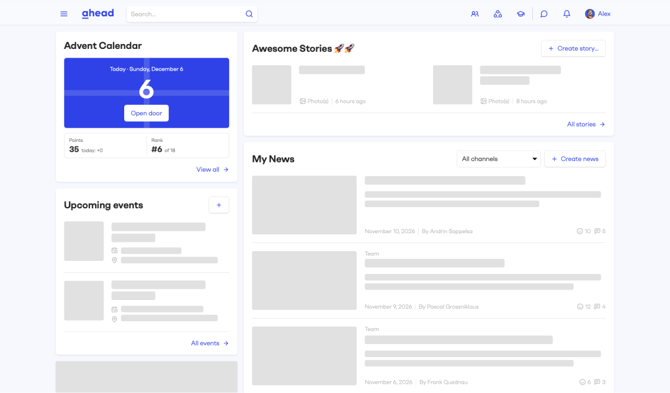
The Winter Calendar is a digital Advent calendar for your Homepage. From 1 to 24 December, employees open a new door every day, discover what is behind it and answer quizzes. Every door earns points, and a leaderboard shows who has collected the most.
The calendar comes with ready-made content in English and German, so it works from the moment you add it. You can keep that content or replace any door with your own.
At a glance
| Season | Door 1 opens on 1 December and the last door on 24 December. The calendar closes on 24 December at 23:59. |
| Time zone | Swiss time (Europe/Zurich), for every user. |
| Where | Homepage only, in a one-third column. One calendar per company. |
| Who takes part | Everyone who sees the Homepage, guest accounts included. It can't be limited to a target audience. |
| Languages | Default content in English and German. You can add more languages as needed. |
Who can do what
| What | Who | Permission |
|---|---|---|
| Add, rename or remove the module | Admins | Company Settings |
| Change the doors and the teaser image | Editors | Edit Hub Module |
| Open doors, see the leaderboard | All users | None |
1. Add the module to your Homepage
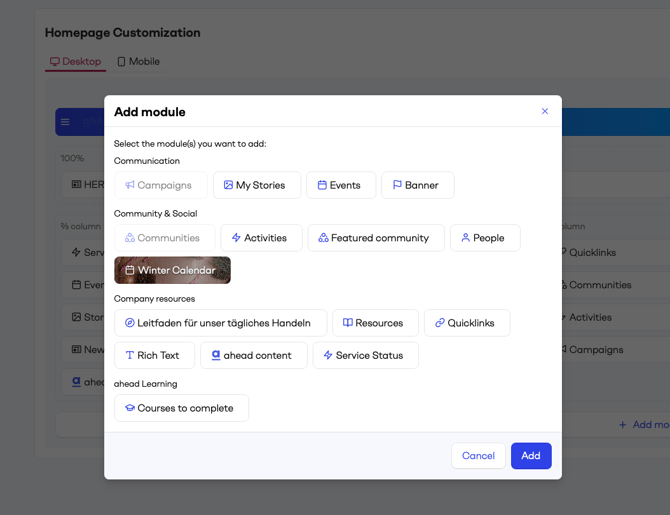
Adding the module is the only step needed to turn the calendar on.
- Go to Company Settings → Homepage.
- Add a module to a one-third column and choose Winter Calendar. The module can't be placed in a two-thirds or full-width area.
- Optional: change the module title. It is "Winter Calendar" by default, and you can change it per language like any module title, e.g. "Advent Calendar" .
- Save the Homepage.
The teaser
As soon as the module is on the Homepage, every user sees a teaser with a countdown to 1 December.
Editors can change the image behind the countdown: click Edit image on the module on the Homepage.
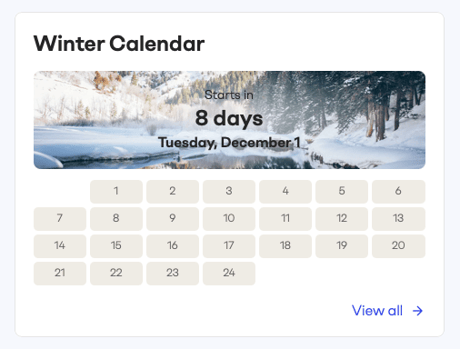
During the teaser, only people with 'Edit Hub Module permission' can open the full calendar (via View all) to prepare the doors.
2. Prepare the calendar
Default content
Every door comes filled, in English and German. You don't have to write, translate or upload anything. Default content has texts, images and general knowledge quizzes about winter topics. Replace any door you prefer not to use.
Edit the doors
Customising is optional and can be done door by door. You need the Edit Hub Module permission.
- On the Homepage, click View all on the Winter Calendar module.
- Turn on Edit doors. You now see the content of all 24 doors, including future ones.
- Click a door to open the door editor, make your changes and save.
- Click Done to leave edit mode.
With Edit doors off, editors play like everyone else and don't see what is behind future doors.
What a door can hold
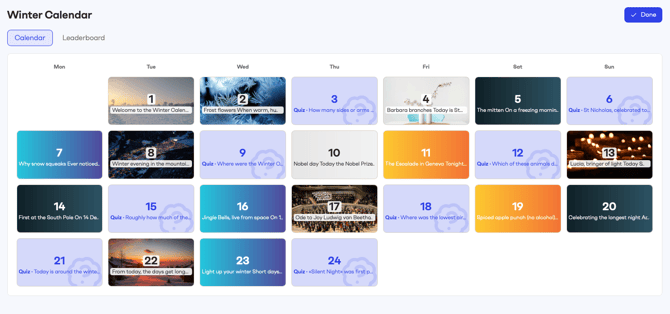
Each door holds either image and text or a quiz, never both.
-
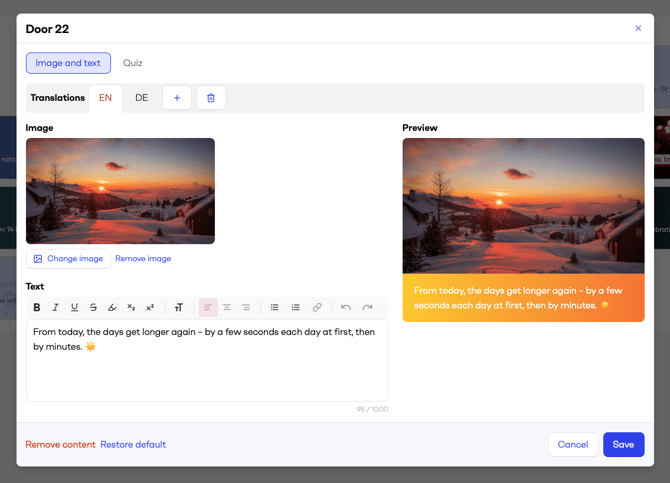
Image and text: An image, a text, or both, shown as a postcard. The text supports the usual formatting, lists and links, up to 1,000 characters per language, on a choice of backgrounds.
-
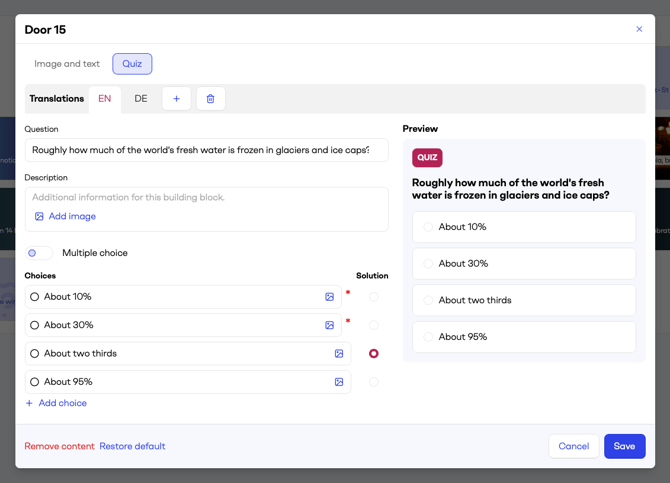
Quiz: Question with an optional description and image, 2 to 7 answers (text or images), one or more correct answers and an explanation shown after answering.
-
Empty: Click Remove content. The door still opens and earns its points, but shows nothing.
Good to know
- No need to finish everything before 1 December. A door only has to be ready before its day, so you can prepare the calendar at once or day by day.
- You can edit doors during the season. Points people have already earned are kept.
- Check quizzes before they go live. As soon as one person has answered a quiz, it is locked. It can no longer be changed, restored or removed, so a wrong answer can't be corrected afterwards.
3. How the calendar works for employees
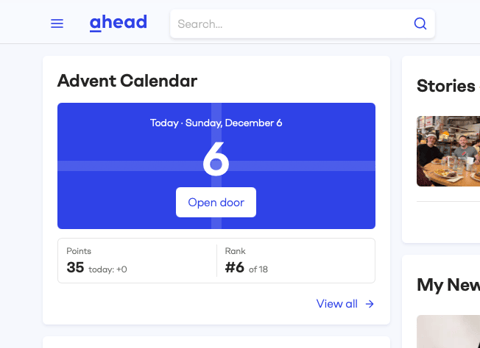
From 1 December, the module shows today's door. Clicking it opens the door right there on the Homepage: the door fades away, the content appears and the points are added. A quiz door counts as opened once the quiz is answered.
The module also shows the user's points and rank, and how many earlier doors can still be opened. View all leads to the full calendar.
The full calendar
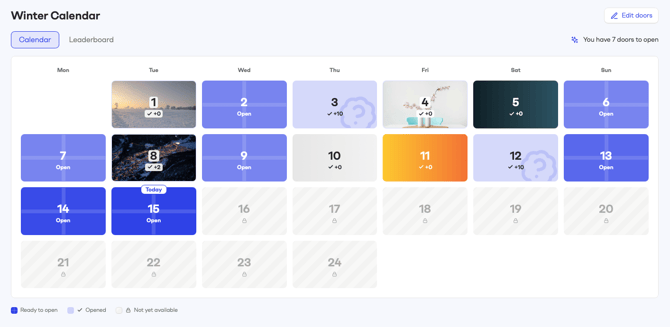
The Calendar tab shows all 24 doors in a week grid, each marked as today, ready to open, opened or not yet available. Opened doors can be read again at any time. Future doors stay locked and their content isn't visible to anyone playing.
Scoring
Points reward coming back on time. Each door can be opened once, and missed doors can be opened until the calendar closes.
| When the door is opened | Points | With a correct quiz* |
|---|---|---|
| On its own day | 5 | 15 |
| Saturday or Sunday door, up to the following Monday | 5 | 15 |
| Within 2 days | 2 | 12 |
| After 2 days, until 24 December | 0 | 10 |
A correct answer adds 10 points, however late the door is opened. There is one try, and a wrong answer adds nothing. After answering, people see the correct answer, the explanation and how many colleagues got it right.
4. Leaderboard
The Leaderboard tab in the full calendar lists everyone who has opened at least one door, with name, profile picture and points. People with the same score share the same rank.
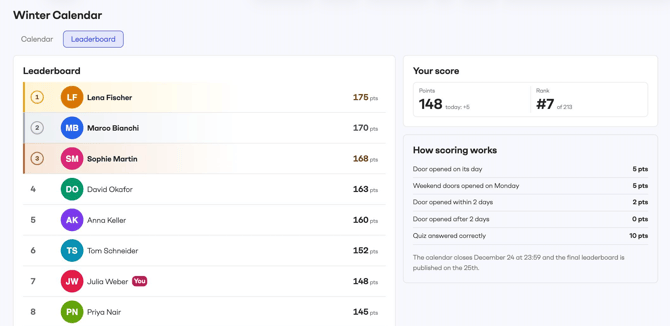
- People who haven't opened a door yet aren't listed and see "Not ranked yet".
- The leaderboard updates when a door is opened or the page is reloaded.
- There are no built-in prizes. If you want to reward the top scorers, announce the prizes yourself, for example in a news article.
5. After 24 December
The calendar closes on 24 December at 23:59. Nothing can be opened after that, and the leaderboard is final on 25 December.
From 25 December, the module shows that the calendar is complete, the leaderboard and the user's own result. The full calendar stays available, so people can look back at the doors they opened and at the final leaderboard.
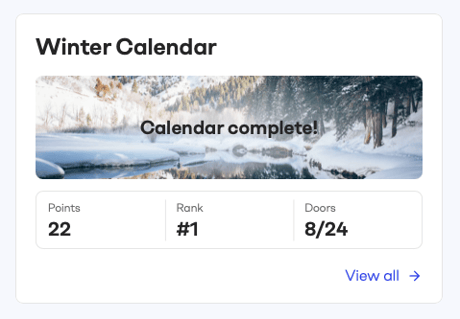
The module stays on the Homepage until an admin removes it, and you can do so whenever you like. In mid-January ahead removes the Winter Calendar feature.
FAQ
-
Can I add the calendar to a Hub?
No. It's available on the Homepage only, in a one-third column. -
Can I show it to some employees only?
No. Everyone who sees the Homepage sees the calendar, guest accounts included. -
Can I change the dates?
No. The dates are the same for every company: 1 to 24 December, Swiss time. -
I removed the module by mistake. Is the progress lost?
No. Add the module again and everything is back: the doors, the points and the leaderboard. -
Someone answered a quiz with a wrong answer key. Can I fix it?
No, an answered quiz is locked. Check every quiz before its day.