
ahead supports multiple languages, both for the app interface and for the content published in it. You can choose your preferred languages in your profile.
To set your languages:
-
Click your name in the top-right corner and select My profile.
-
Click the settings icon in the top-right corner of your profile.
-
Under Language, choose your preferred languages and click Save.
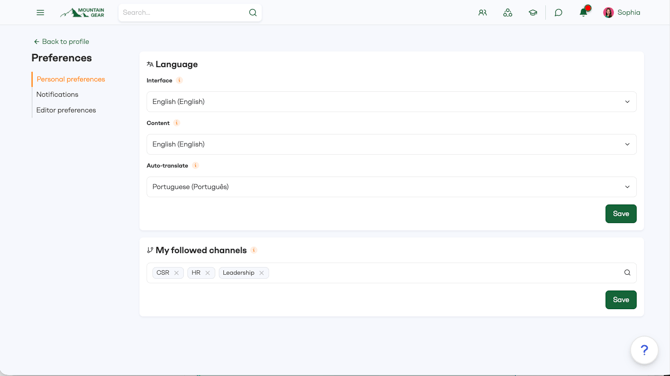
You can set three languages:
- Interface: The language of buttons, menus and headlines in the app.
- Content: The language you see news, pages and events in.
- Auto-translate: The language you can translate news, pages, comments, stories and community posts into with one click.
Note: If you don't see all three options, your organization either doesn't use auto-translate or offers only one content language.
Understanding the different language options
Interface language
The interface language is used for app elements like buttons, headlines and menu items. The navigation structure, however, counts as content, so it's shown in your preferred content language.
Content language
Your organization decides which content languages are available. These are usually its official company languages or the languages spoken where it operates.
Editors can publish news, pages and events in one or more of these languages. You'll see content in your preferred content language whenever it's available. If it isn't, you'll see it in your organization's fallback language.
Auto-translate language
If your preferred language isn't one of the available content languages, or if your organization is multilingual, you can choose an auto-translate language. Auto-translate lets you translate any content into this language with one click. Translations are powered by DeepL.
You can also translate comments, stories and community posts. Just click Translate below them to see them in your auto-translate language.
Note: Auto-translate is a premium feature that incurs an extra cost. If you'd like to learn more about it or enable it for your organization, reach out to your CSM or contact support@aheadintranet.com.
Examples
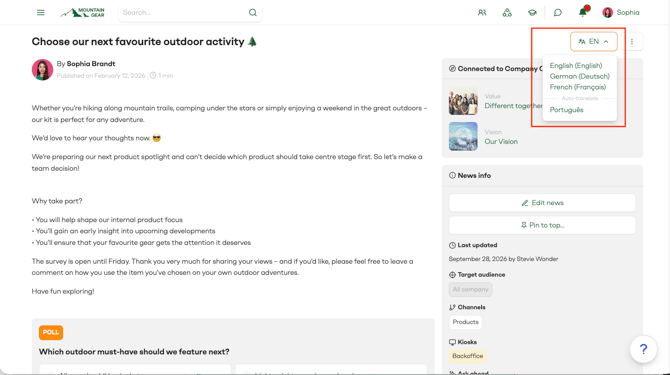
This news article was published in English, German and French.
My preferred content language is English, so I see the English version by default.
My auto-translate language is Portuguese, so I can also translate the article into Portuguese. To do this, I open the language menu in the top-right corner and select Portuguese.

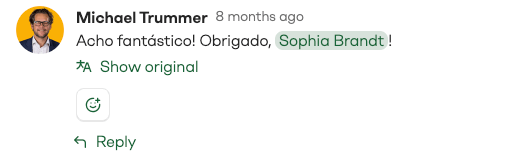
Comments can be auto-translated, too. Here's the same comment before and after translation.
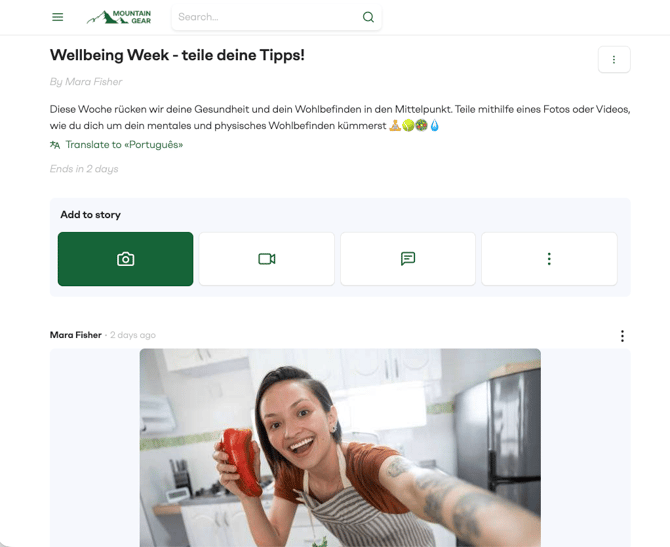
Stories work the same way: click Translate to see them in your auto-translate language.
🔎 Can't find the right answer to your issue?
Just open a ticket through our customer portal and we will be happy to assist you.