
The Lesson Generator is an AI assistant available in ahead Learning that creates the actual content of a lesson for you.
You provide a lesson topic and learning objectives, and the AI generates a complete lesson draft that's ready for review and refinement. This includes a clear structure, explanations of key concepts and content written for the intended audience.
Unlike the Course Outline Generator, which defines the structure of a course, the Lesson Generator focuses on developing a single lesson in depth.
Starting the Lesson Generator
After creating a lesson, either manually or using the Course Outline Generator, open the lesson and click Add building block, then select Lesson Generator.
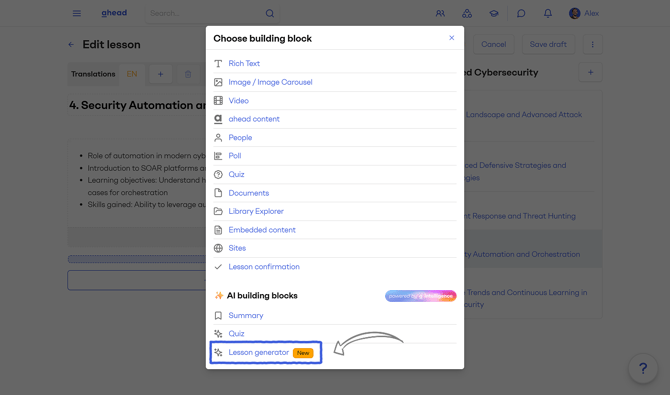 Find it in the AI building blocks section
Providing context and information
When you start the Lesson Generator, a modal opens where you provide the input used to generate the lesson content.
The generator's modal includes the following inputs:
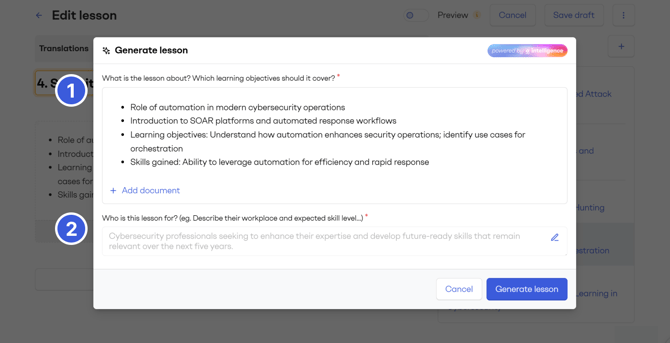
1. Lesson topic and learning objectives
Use the field labeled “What is the course about? Which learning objectives should be covered?” to describe the lesson. See some tips
You can include:
-
The main topic of the lesson (AI will also use the lesson title)
-
Key aspects or concepts to be covered
-
What learners should know or be able to do after completing the lesson
If the lesson already contains content, this will be pre-filled in the text field.
You can also upload a document in PDF, Word or PowerPoint format. The AI will analyze the file and use it as reference when generating the lesson. Free text and document upload can be used together or independently.
Did you use the Course Outline Generator? If the lesson was created using the Course Outline Generator, it already contains bullet points describing the lesson topic and learning objectives. The Lesson Generator automatically uses these as input.
2. Target audience
In the “Who is this course for?” field, describe the intended audience. See some tips
If the Course Outline Generator was used, the audience will usually already be populated. In most cases, the lesson audience is the same as the course audience, but you can adjust it if needed.
Generating the lesson
Once the context is ready, click Generate lesson.
The AI adds a rich text building block to the lesson and generates the full lesson content. The text is written in a clear, readable flow, organized into sections, and explains concepts step by step.
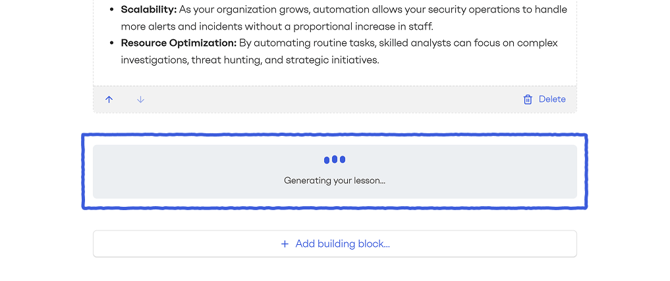 The text is generated in real time
When generation is complete, the content behaves like any other rich text. You can edit, shorten, expand, or restructure it as needed.
Regenerating the lesson
If you are not satisfied with the result, delete the generated building block and add a new Lesson Generator building block.
Adjust the input fields and generate again. Each change to the input will produce a different result, ranging from small refinements to significant changes in structure or depth.