
The Course Outline Generator is an AI assistant available in ahead Learning. Its purpose is to help course creators quickly generate a course outline, meaning a structured list of lessons with titles and short summaries.
This assistant is designed to speed up the early stages of course creation. Defining a solid outline is often the most time-consuming and ambiguous part of building a course. The Course Outline Generator reduces that effort by providing a clear starting point that you can refine.
Once the course outline is generated, you can edit it freely and then start creating the content for each lesson. For lesson-level content creation, ahead provides a separate AI assistant optimized for that task. 👉 Learn more about the Lesson Generator
Starting the Course Outline Generator
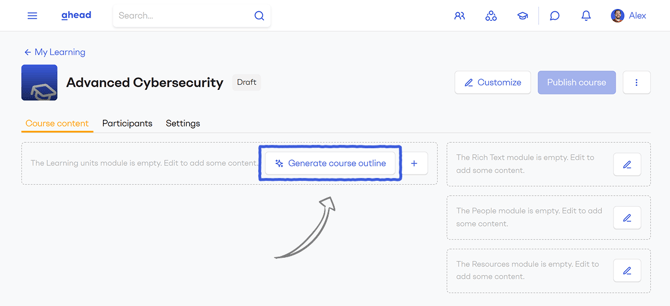
After creating a course, go to the 'Course content' tab and click Generate Course Outline.
This option is only available if the course does not yet contain any lessons. Once at least one lesson exists, the generator is disabled.
Providing context and information
When you start the generator, a prompt modal opens. This is where you provide context so the AI can generate a relevant and well-structured outline.
💡 For best results and guidance on how to craft effective prompts, see our Course Outline Generator Tips article.
The generator's modal includes the following inputs:
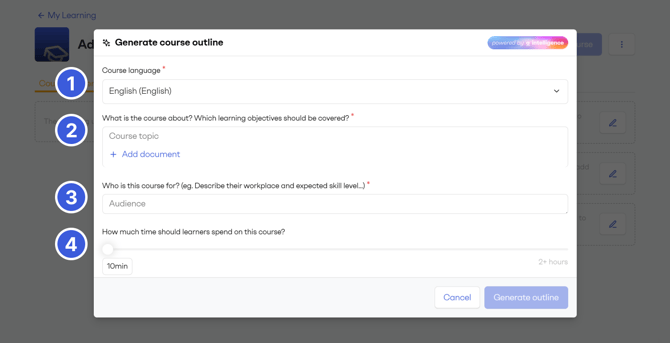
1. Course language
Select the language in which the lesson titles and descriptions should be generated.
2. Course topic and learning objectives
Use the text field labeled “What is the course about? Which learning objectives should be covered?” to describe the course content.
You can explain:
-
The main topic of the course and the key aspects or sub-topics to be covered
-
What learners should know or be able to do after completing the course
You may be very brief or highly detailed. More context generally leads to more precise results.
You can also upload a document in PDF, Word or PowerPoint format. The AI will analyze the file, extract the main topics and use them to generate the course outline.
3. Target audience
In the “Who is this course for?” field, describe the intended audience.
Relevant information includes:
-
Role or job function
-
Level of expertise or prior knowledge
-
Work environment, desktop vs mobile users...
This input directly influences the structure and depth of the generated outline.
Note: The audience definition is a course-level setting and is reused by other AI assistants, such as the Lesson Generator. If the audience has already been defined elsewhere, this field will be pre-filled. You can also edit the audience later in the Settings tab.
4. Time
Define how much time learners should spend on the course.
This setting refers to the estimated reading time of the lesson content. It can span from 10 minutes to 2 hours.
As a general guideline 10 minutes corresponds to approximately 2 to 3 lessons and 2 hours corresponds to approximately 20 lessons. The AI assumes that each lesson should take around 5 to 6 minutes to read.
Generating the course outline
Once all inputs are provided, click Generate outline. The AI will generate a list of lessons, each with a title and a short description of what the content could cover. This process can take up to a minute, specially when you uploaded a file.
Before applying the result, you can edit lesson titles and descriptions as well as add, remove and reorder lessons.
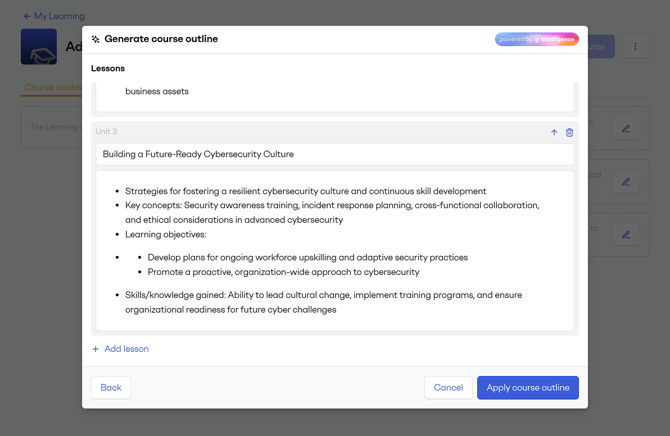
The AI generated an outline with 3 lessons and their corresponding descriptions
When you are satisfied, click Apply. The lessons will be added to the course.
Regenerating the outline
If the generated outline does not meet your expectations, you can go back and adjust the input fields. Regenerating a new outline will produce a different result. Changes can be minor or substantial depending on how the inputs are modified.
Next steps
After applying the outline, the lessons are added to the course. When you open a lesson, you will see that the AI has already inserted a rich text block with bullet points describing the lesson topic and learning objectives.
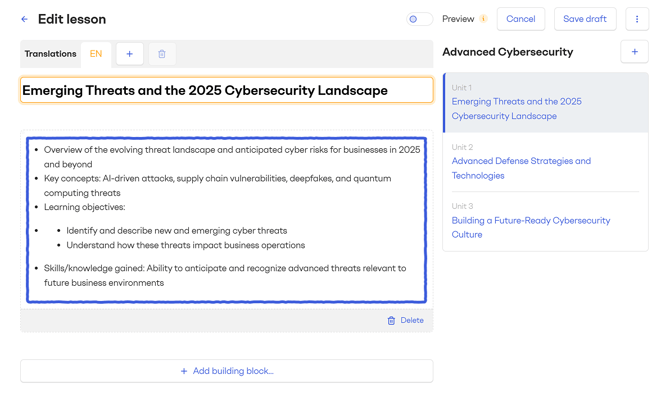
From here, you can:
-
Write the lesson content manually
-
Use the Lesson Generator AI assistant to help generate lesson content.
👉 See how it works